Manage Parking Spaces and EV Charging Stations with FlexyNook
Optimizing parking spaces and Electric Vehicle (EV) charging stations is key to efficient workplace management. With FlexyNook, you can easily configure and automate the management of your parking spots and charging hubs.
Here is a step-by-step guide to setting up and managing these resources in FlexyNook.
Create a “Parking” Space
1 – Go to the FlexyNook admin dashboard.
2 – Navigate to Workspace Management and click Workspace+ to create a new workspace
3 – Select Parking as the space type.
4 – Name or number the parking spot (e.g., Parking Spot A-01).
Add an EV Charging Station
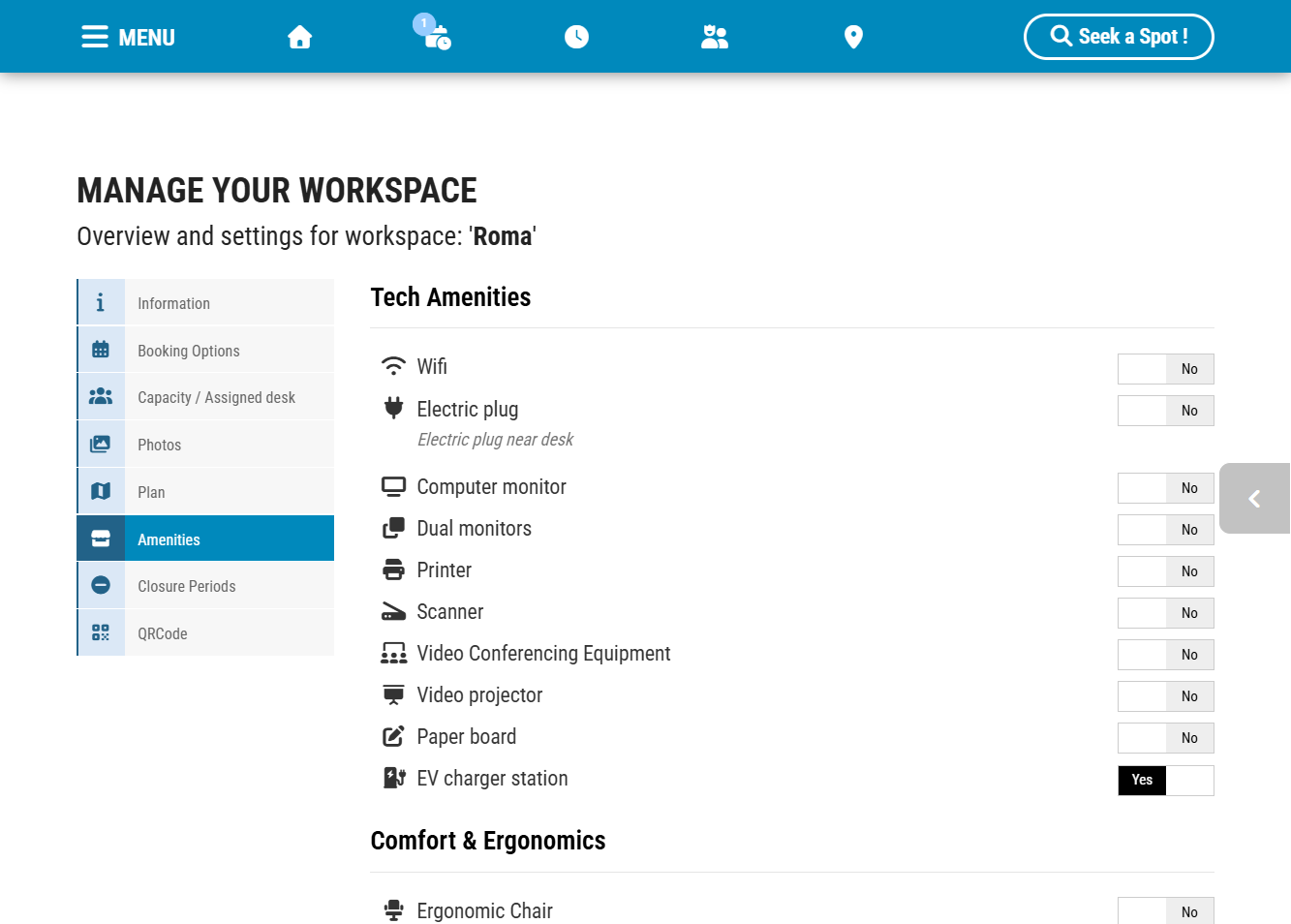
1- In the parking spot configuration, go to the Amenities section.
2 – Add the EV Charging Station feature (in Tech Amenities).
3 – (Optional) Add relevant technical details to inform users (e.g., charging power, plug type).
Set Accessibility Options (PRM / Handicap Access)
If the parking spot is accessible or reserved for Persons with Reduced Mobility (PRM):
1 – Enable the Accessible for Persons with Reduced Mobility (PRM) option in the spot settings.
2 – This allows users to easily filter and find accessible spots when booking.2 – This allows users to easily filter and find accessible spots when booking.
Enable Presence Confirmation to Prevent Idle Spot Blocking
If the parking spot is accessible or reserved for Persons with Reduced Mobility (PRM):
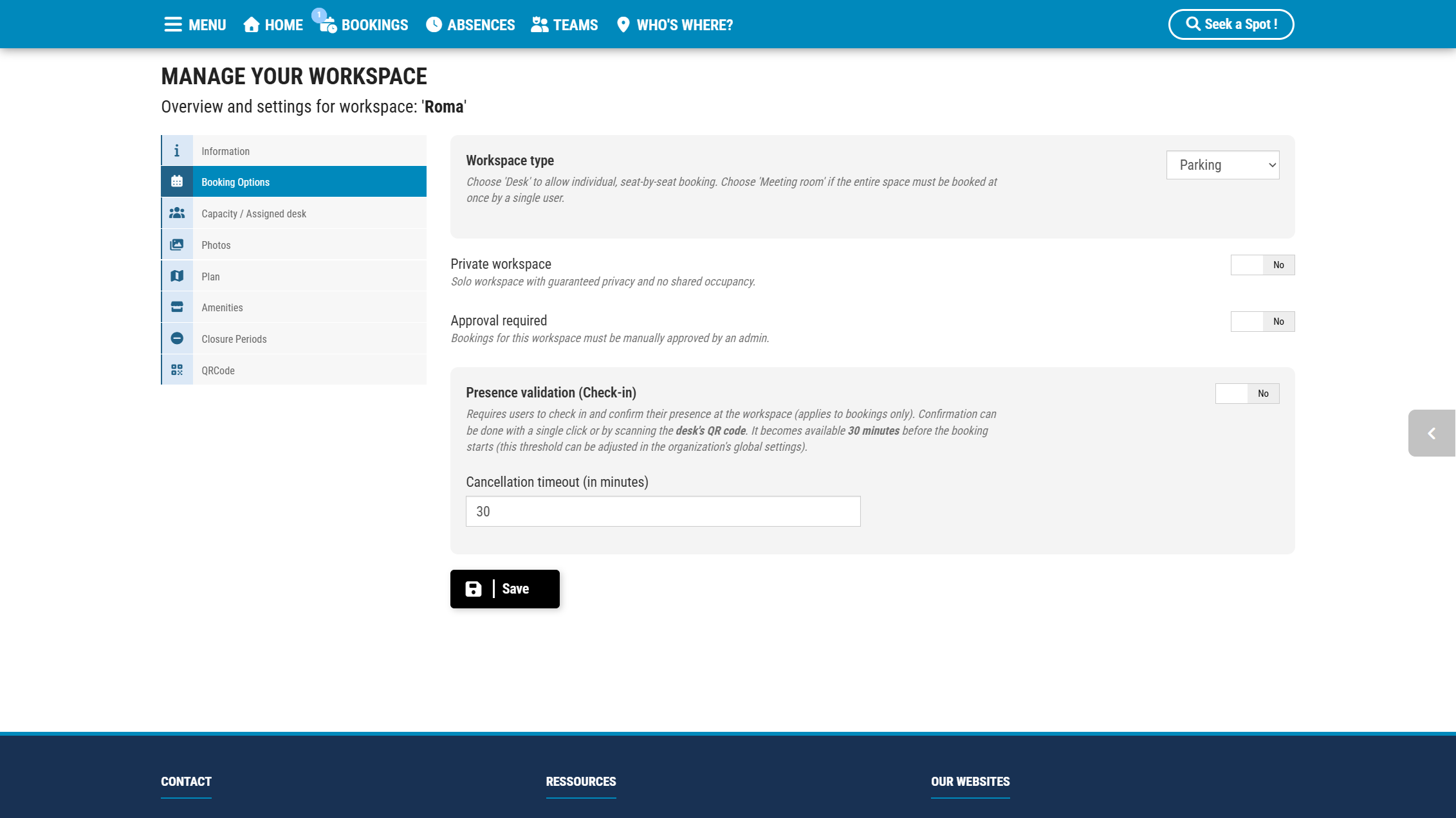
1 – Under the booking options for the space, check Presence validation (Check-in)
2 – Set the Reservation Timeout to 30 minutes.
If the user does not confirm their presence within 30 minutes of the booking start time, the reservation will automatically be canceled, freeing up the spot and charging station for others.
Set Up QR Code Check-In and On-Demand Booking
To make on-site validation and booking fast and simple:
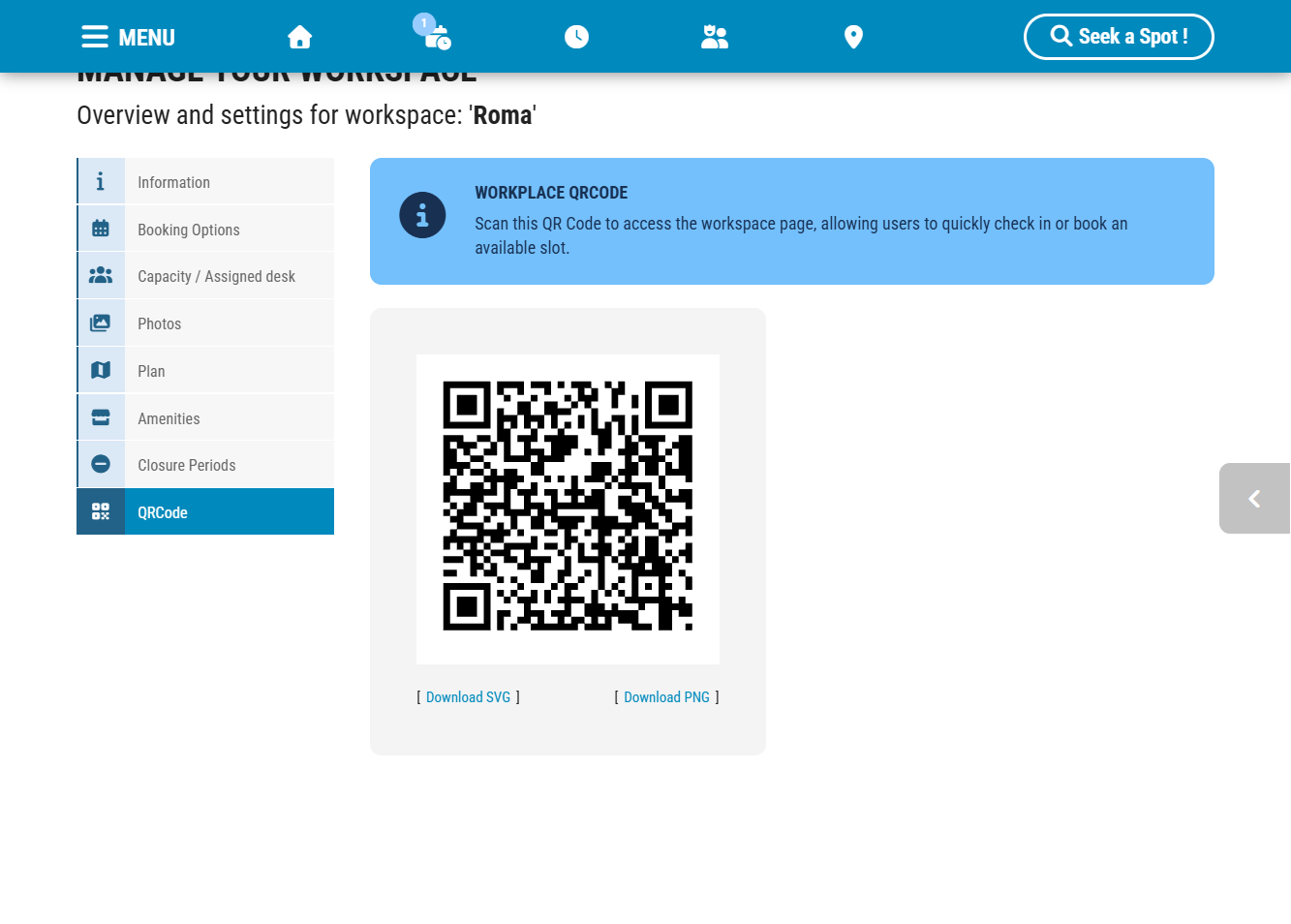
1 – Generate and download the Space QR Code from the FlexyNook workspace section.
2 – Print and display the QR Code near the parking spot or directly on the charging station.
User Flow:
1 – The user arrives at the parking spot and scans the QR Code with their smartphone.
2 – If they have reserved their spot: they will be asked to confirm their presence.
3 – If they haven’t reserved in advance: they will have the possibility to book the charging station based on its availability.
Have a question about this guide or FlexyNook?
Need help configuring your spaces or want to clarify a feature? Our team is here to help you get started.