
Book a Meeting Room and Invite other guests
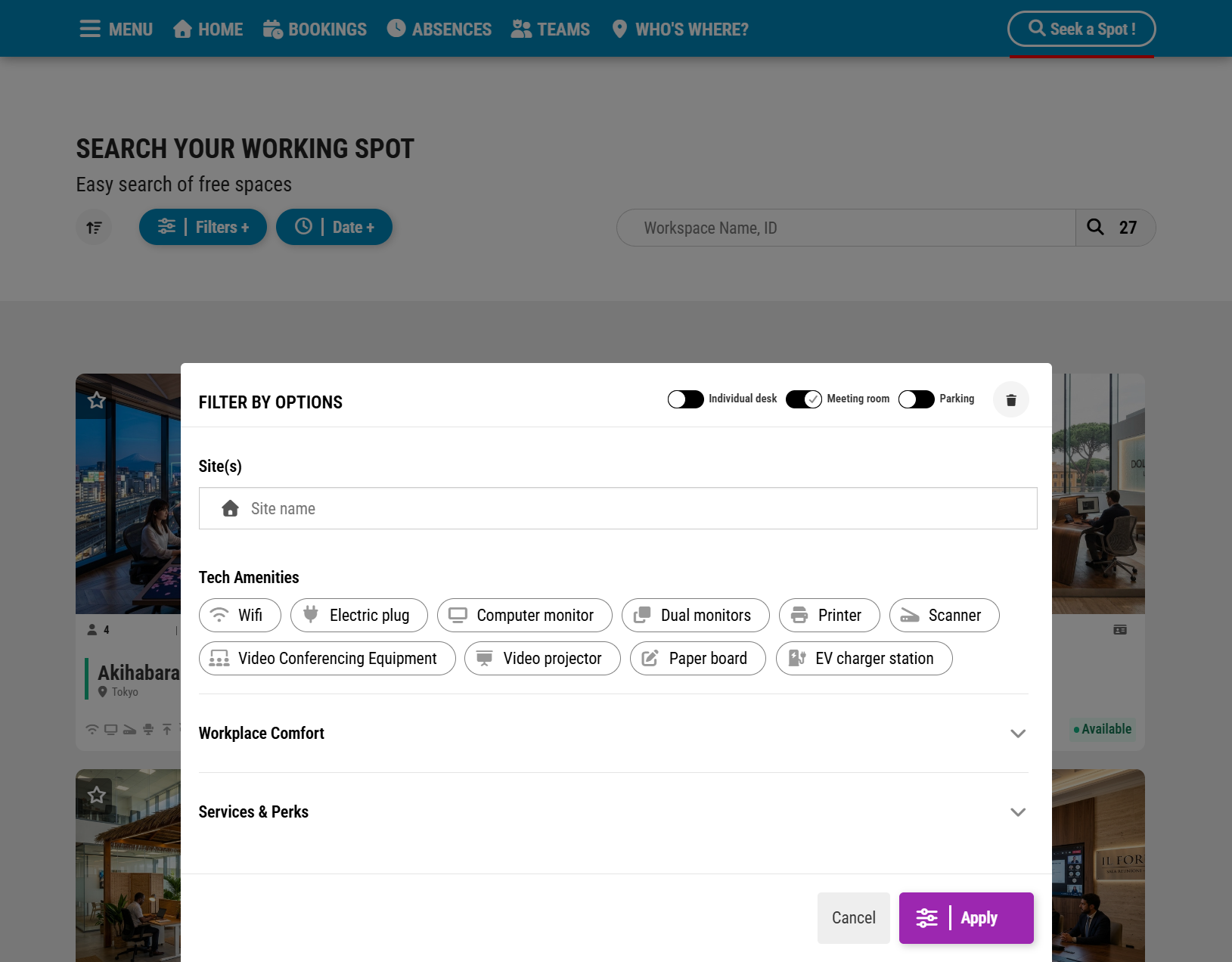
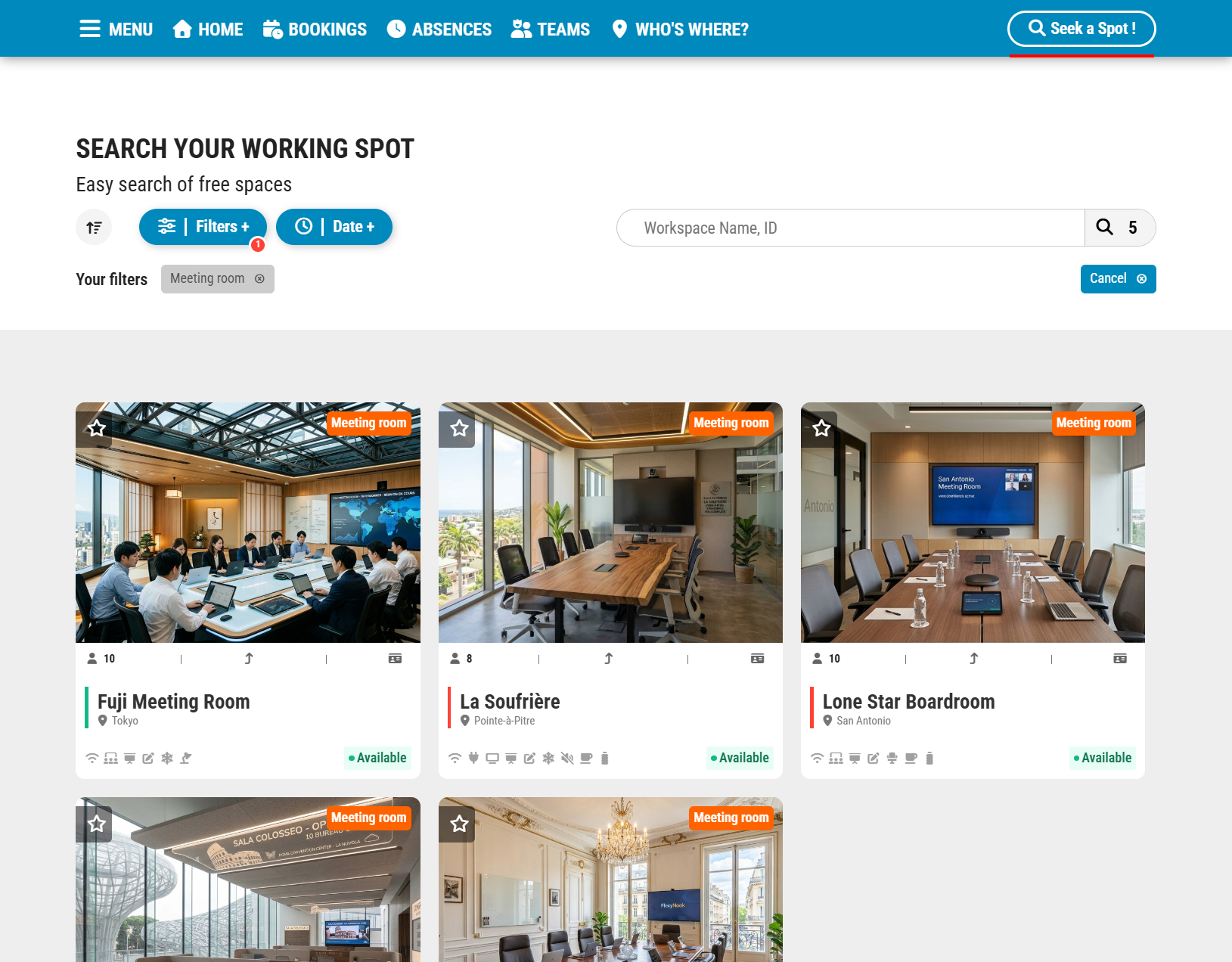
FlexyNook makes booking meeting rooms and collaborating with your team simple and efficient. In the search engine, meeting rooms are easily identified by the “Meeting Room” icon/tag.
While a meeting room has a specific seating capacity, it is always booked in its entirety. Only one person places the booking and becomes the designated host responsible for the reservation. Once confirmed, the host can easily invite colleagues to join the session.
Find and Book a Meeting Room
1 – In the search engine, select the “Meeting Room” filter to display available spaces.
2 – Choose your preferred time slot and place your booking.
Invite Teammates to Your Meeting (Optional)
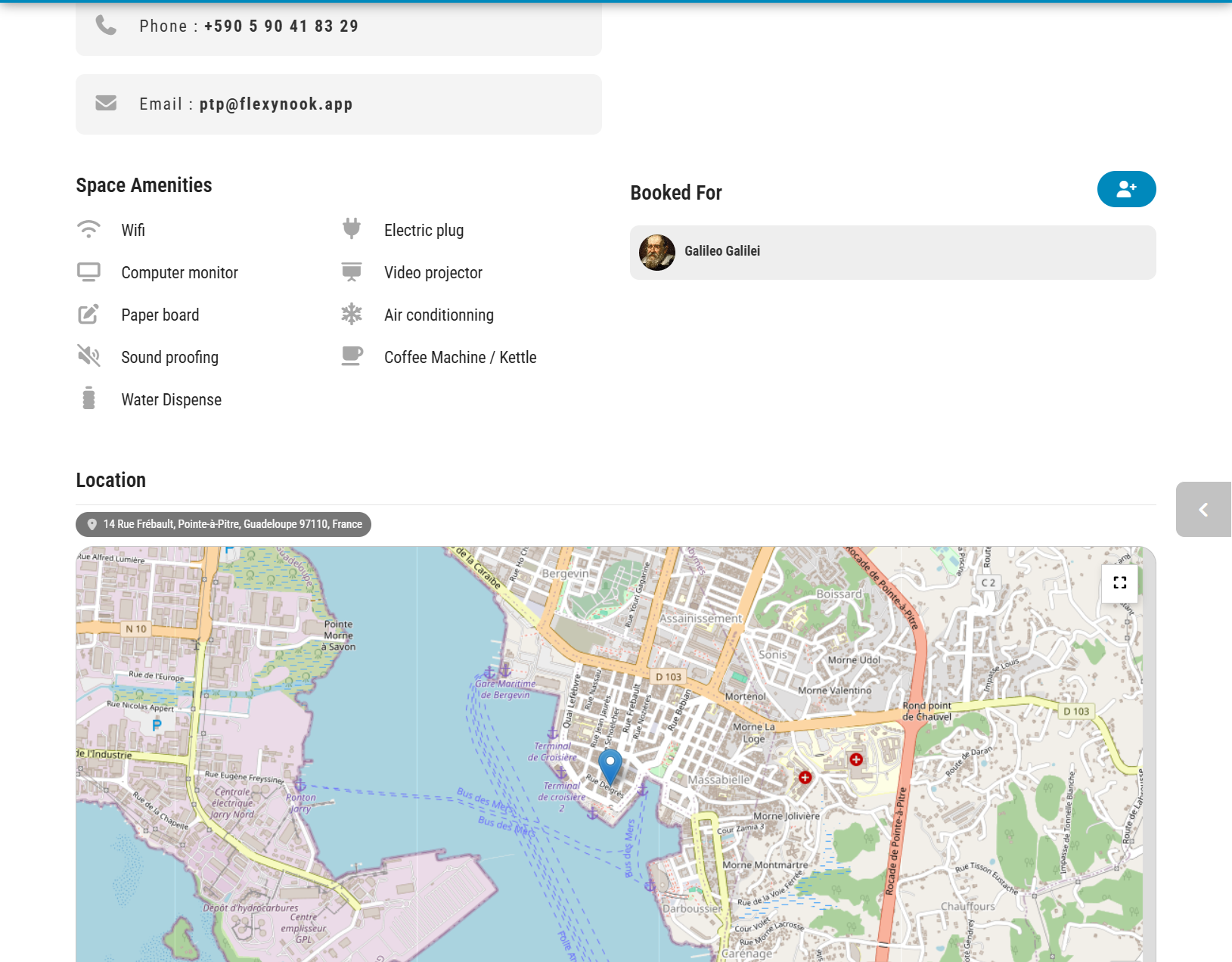
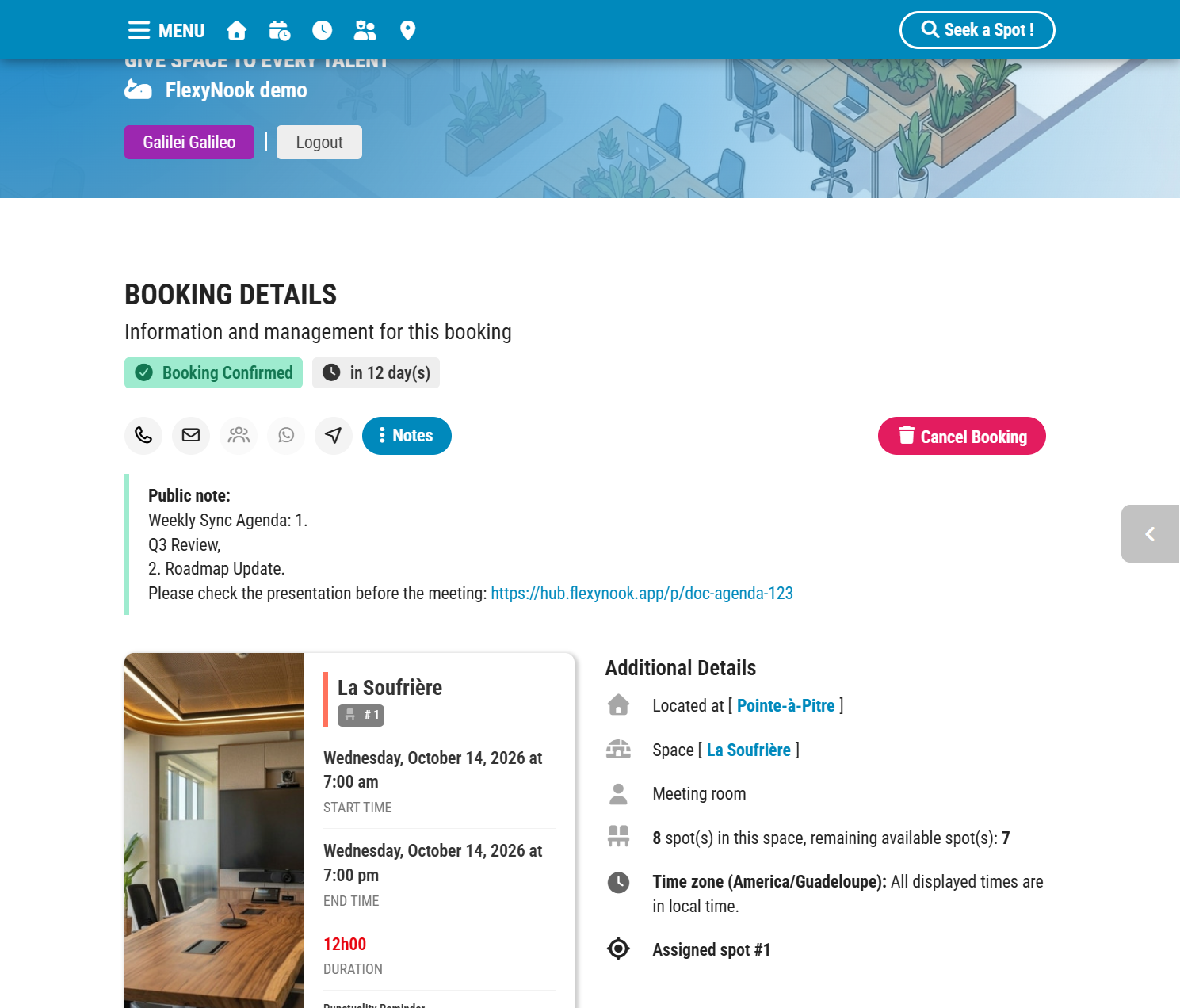
1- Navigate to your active reservations and select your booking.
2- Once your reservation is Confirmed, locate the “Invite another guest” button next to “Booked For”.
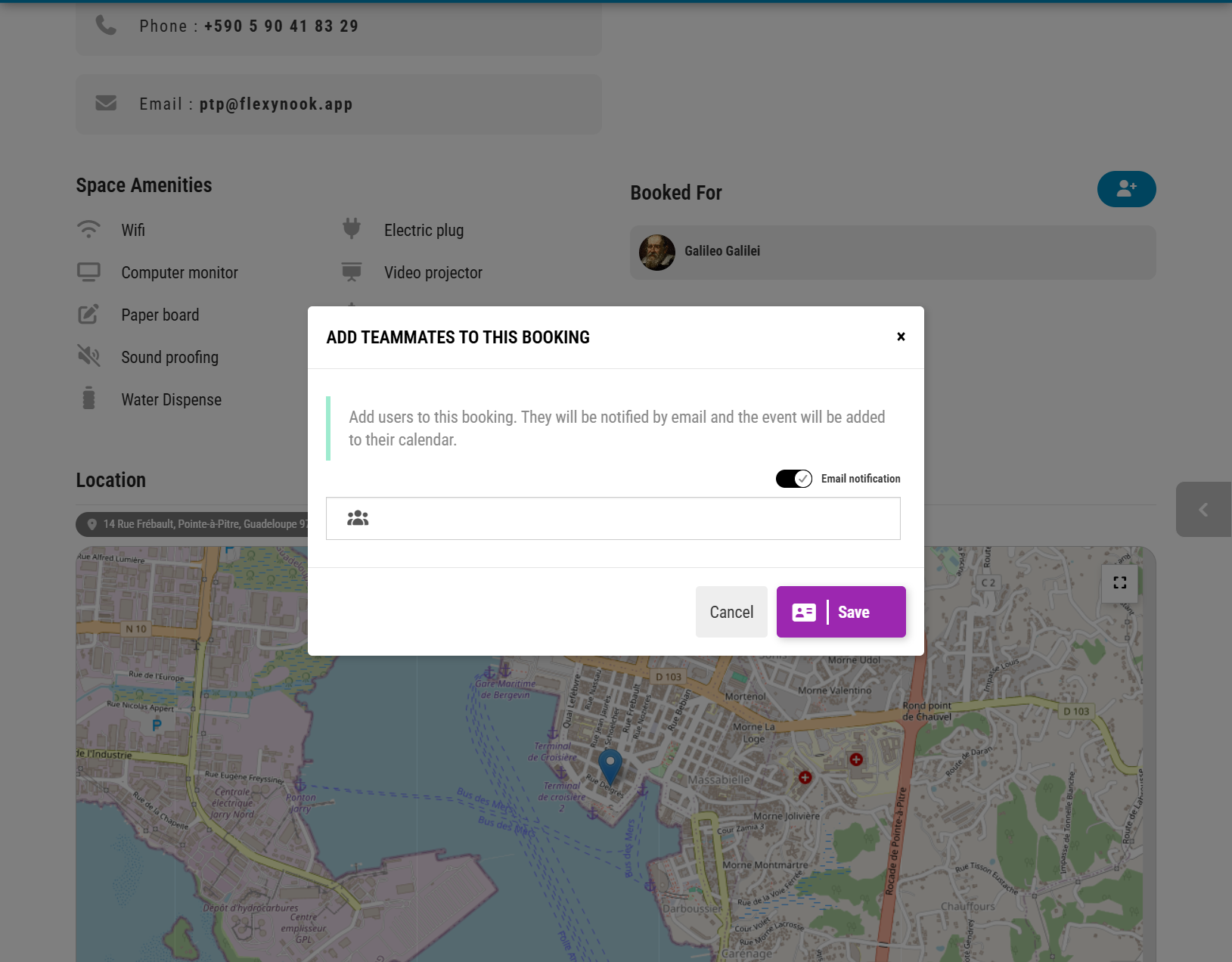
3 – Search for your guests, select them, and confirm your invites.
4 – Invited participants will receive an email notification, and the meeting will automatically appear in their schedule.
Important information about Booking Notes:
Public Notes: Only the organizer (the person who placed the booking) can add public notes, such as meeting agendas or access details. These notes are visible to all attendees.
Private Notes: Any participant can add personal notes to the reservation. These notes are strictly private and visible only to the individual who created them.
Have a question about this guide or FlexyNook?
Need help configuring your spaces or want to clarify a feature? Our team is here to help you get started.