Booking a Workspace on FlexyNook
Whether working in a hybrid setup or visiting an office location, booking a desk or a meeting room on FlexyNook only takes a few moments. Follow the steps below to find and reserve a workspace with ease.
Find a Workspace
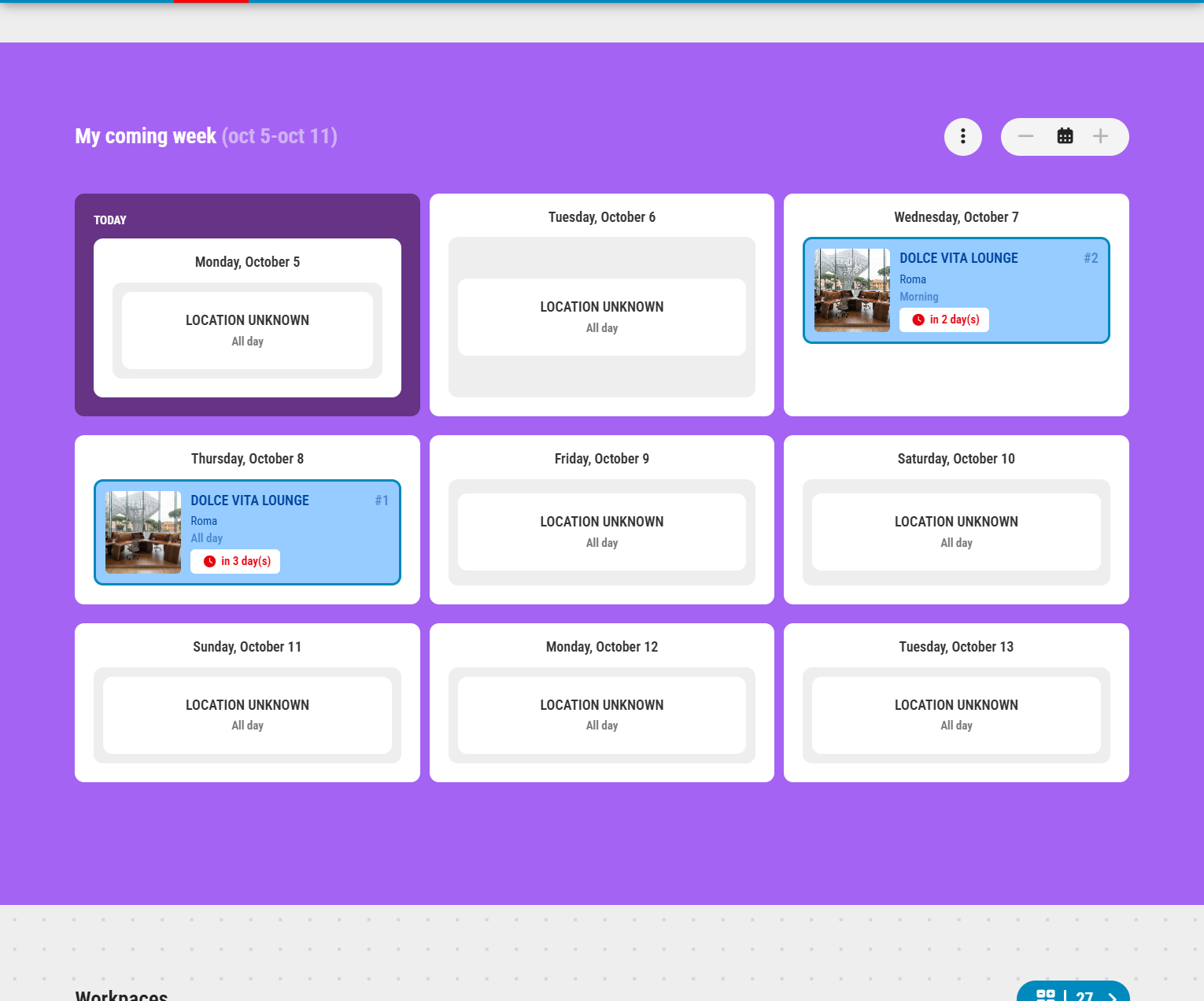
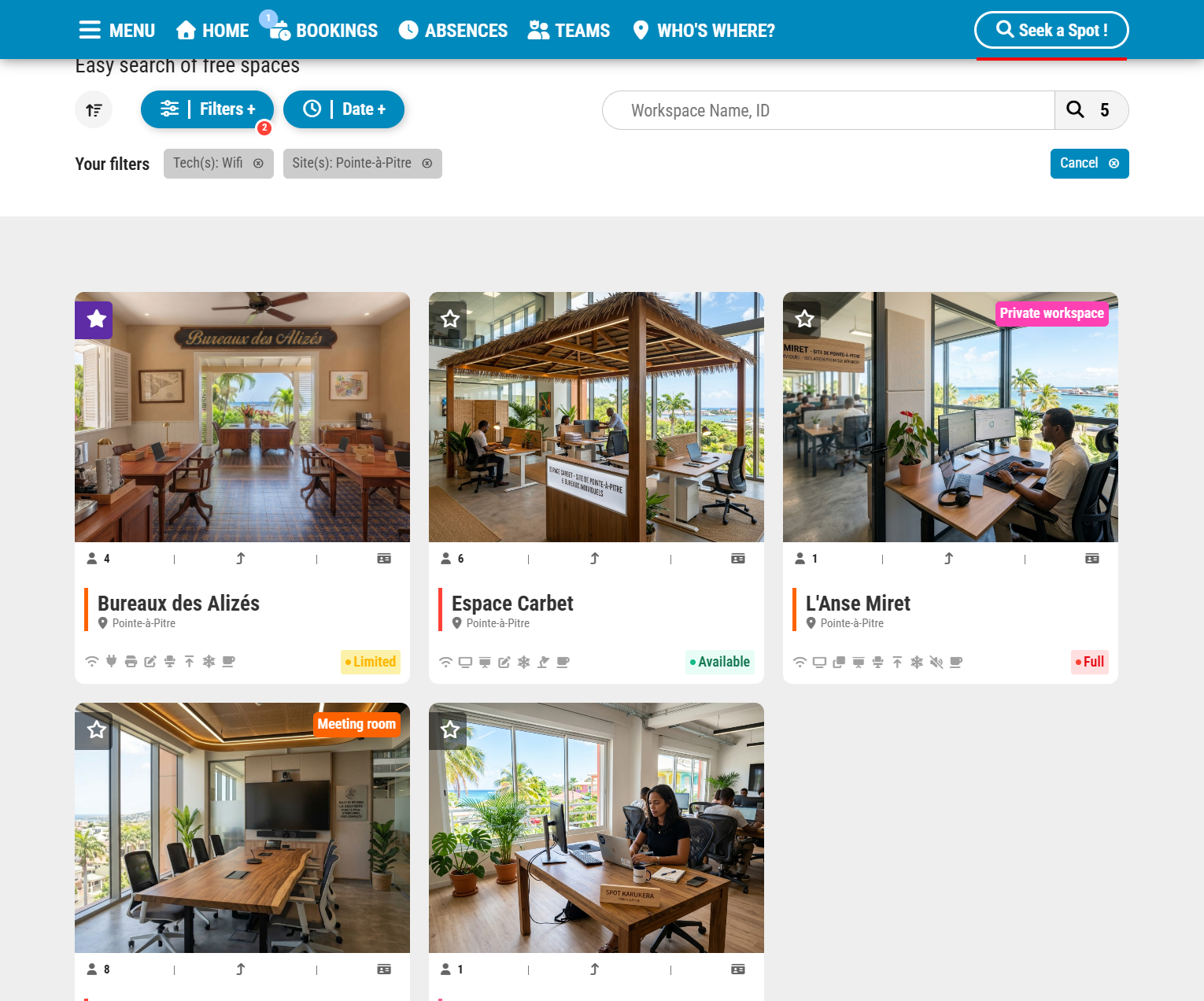
— Favorite workspaces: Your favorite spaces appear directly on the home page for quick access.
— Add to favorites: Click the star icon on any workspace to add it to your favorites.
— Search option: Use the search bar to look for a specific workspace.
Apply Filters
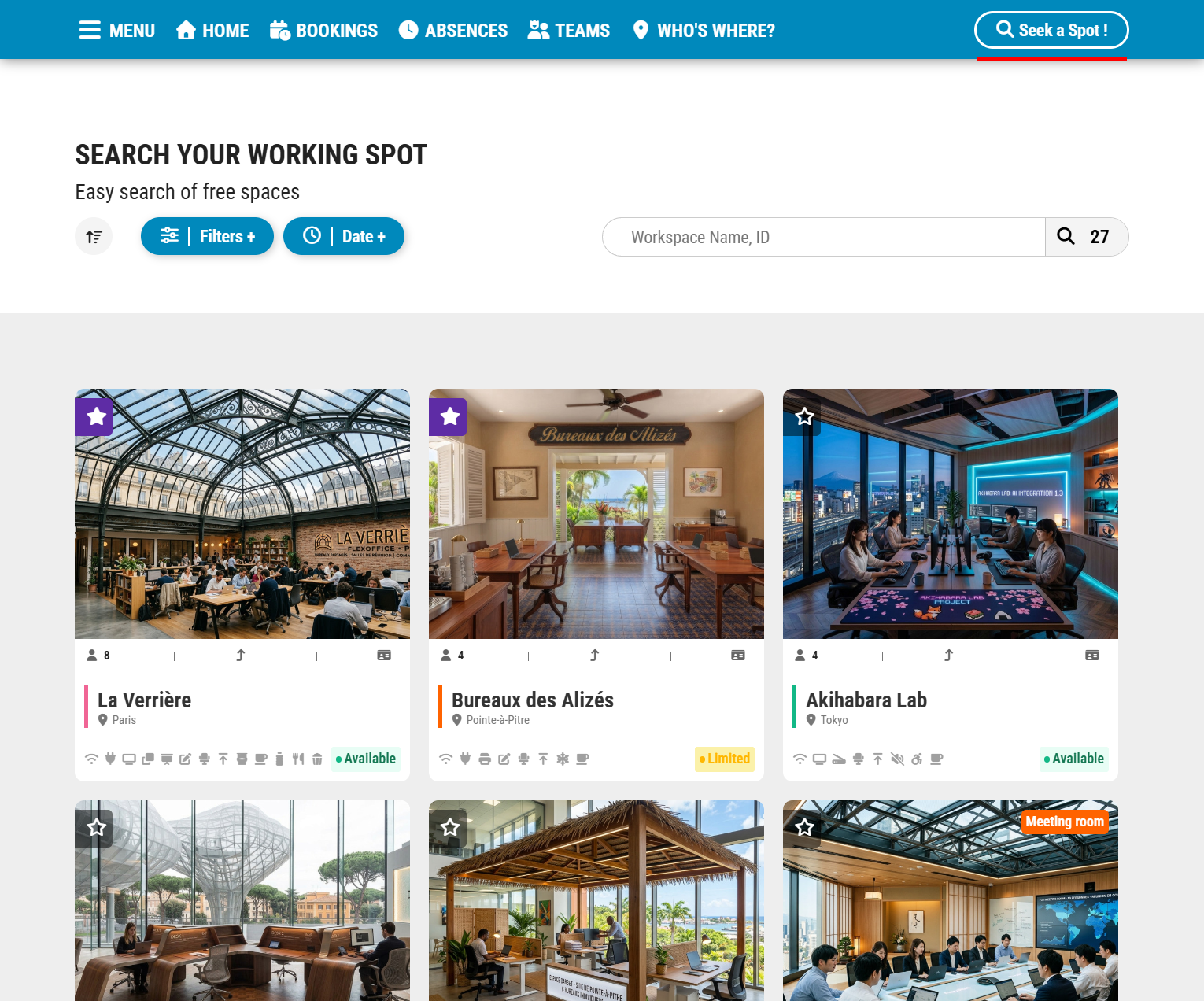
— Targeted search: Use filters to refine your search by site, workspace type, equipment, or capacity.
— Default availability: Availability indicators apply to the app’s default time slot (7:00 AM – 7:00 PM).
— Sorting options: You can sort results by floor, number of seats, or spot ID.
Check Availability
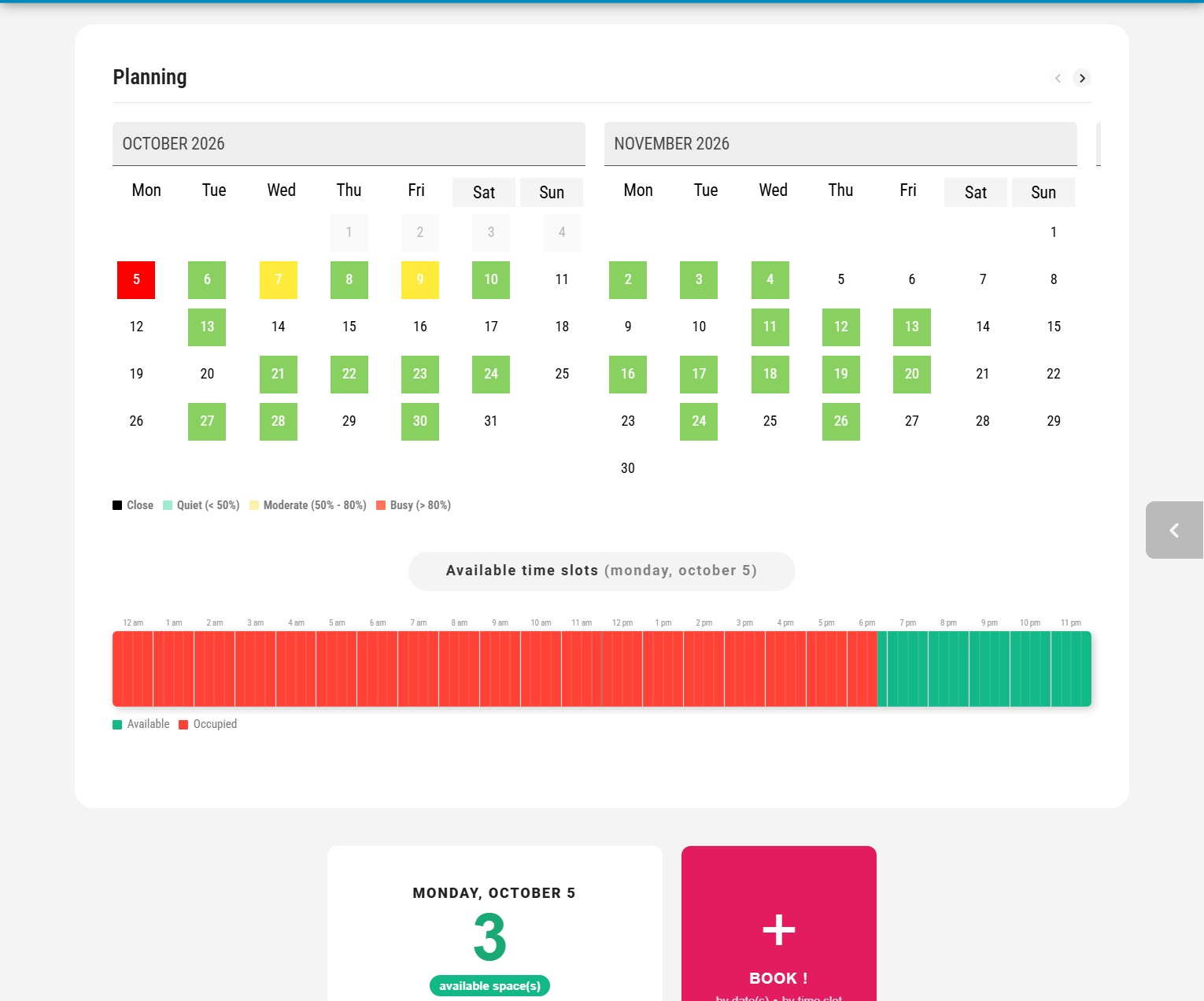
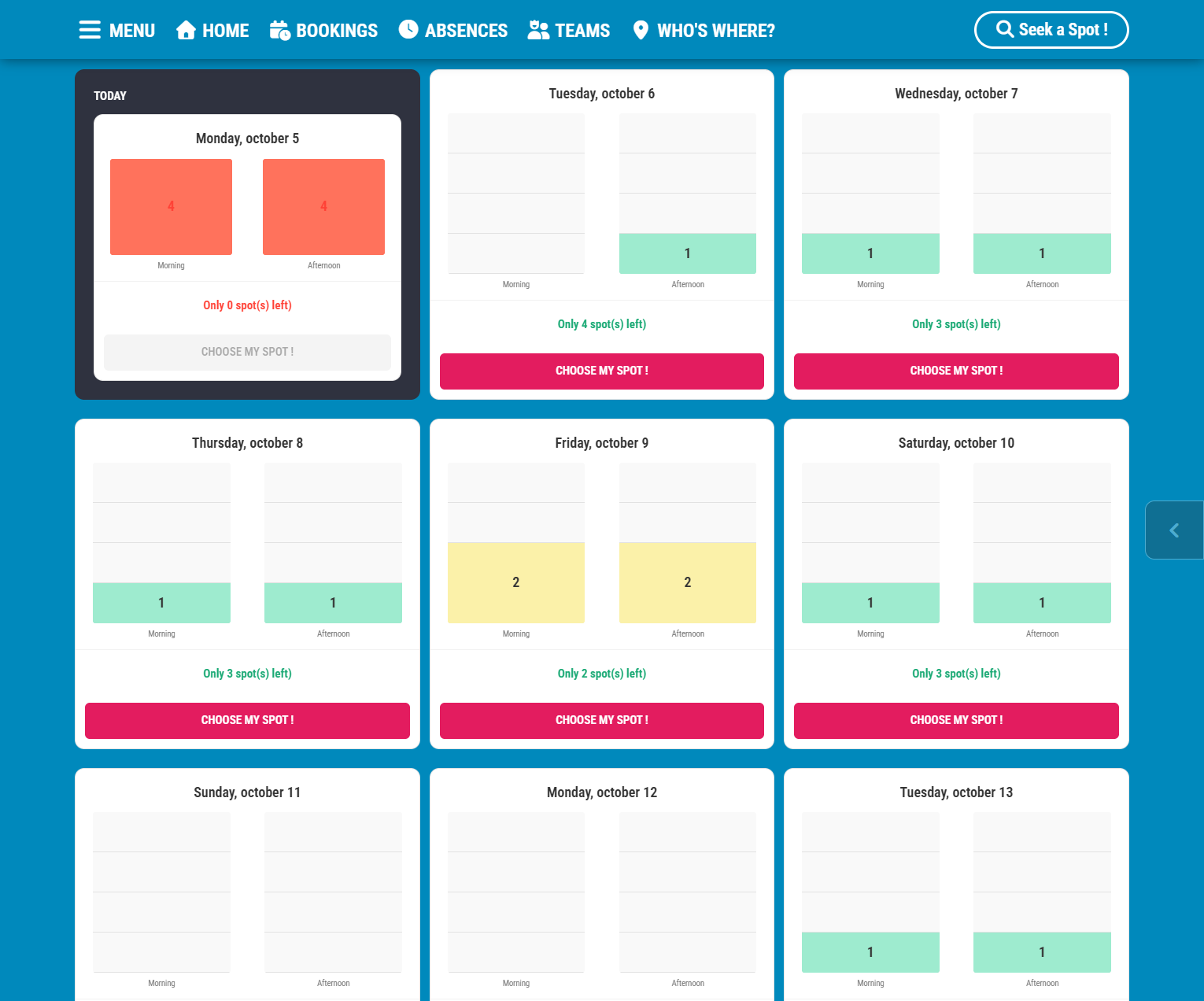
— Occupancy level: The color code on the calendar shows how busy a workspace is—the closer to red, the fewer seats available.
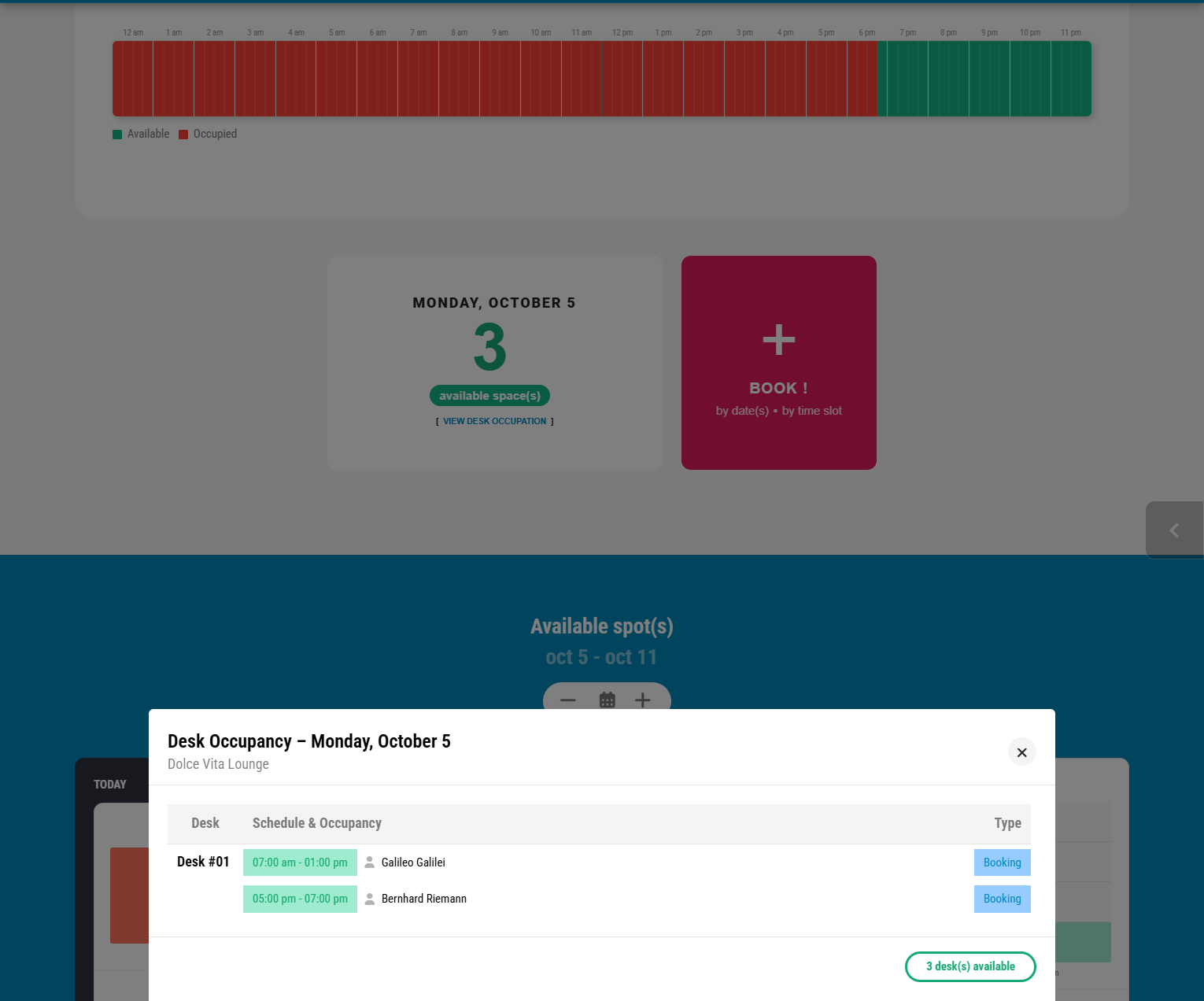
— Interactive timeline: The timeline highlights free and busy slots for the selected day (green = available, red = occupied). Selecting a date on the calendar updates the timeline.
— Booking access: Click the “Book” button to start reserving by day or by time slot.
Book Your Space
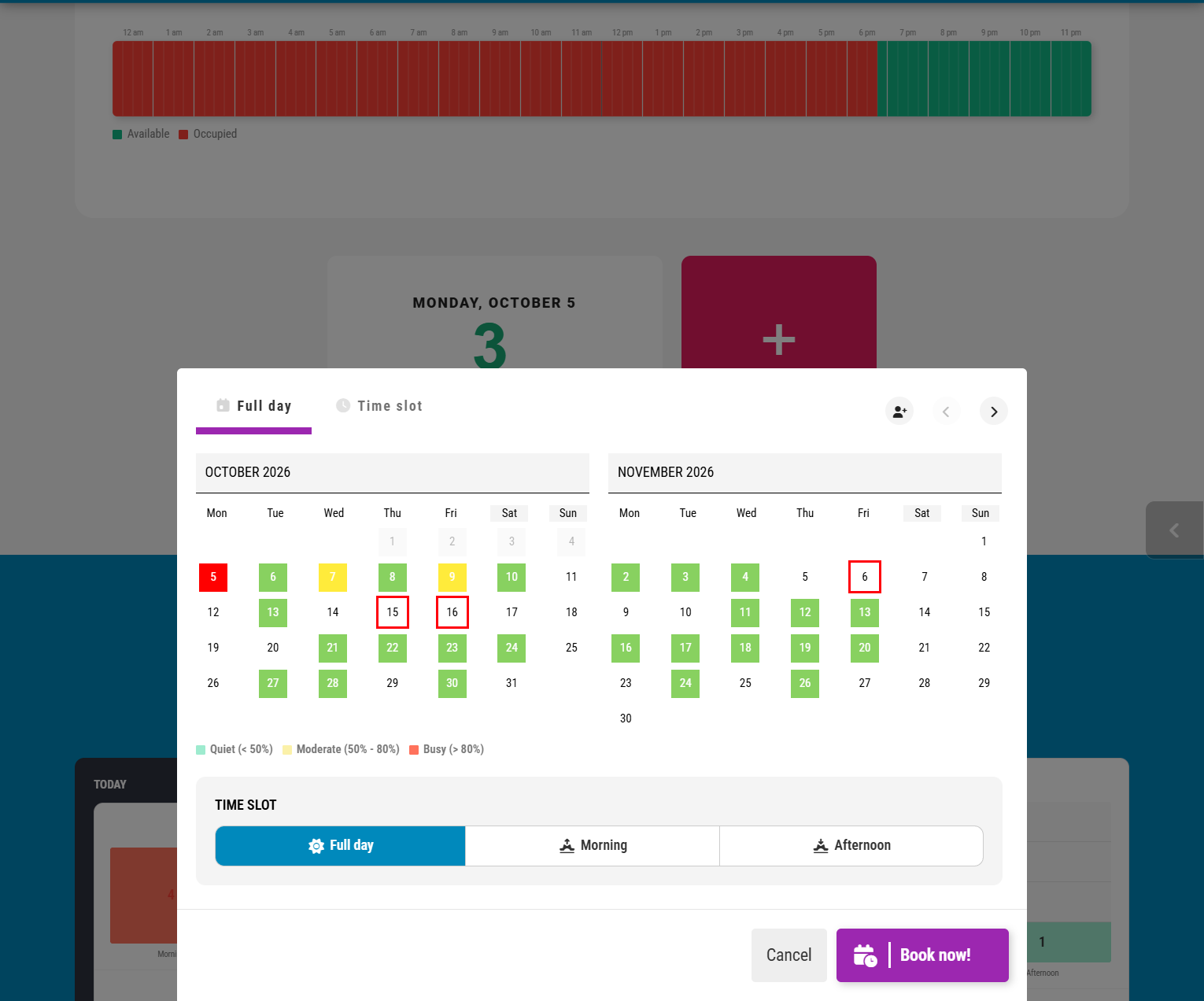
— Multi-date & time slots: Click “Book” to select multiple dates at once or choose specific hours.
— Book for others: Managers can reserve spaces on behalf of colleagues using the “Book for others” button.
— Optimization & confirmation: Once submitted, seat allocation is processed based on availability and an occupancy optimization algorithm. You will receive an email confirmation upon validation.
⚠️Important Notes & Rules
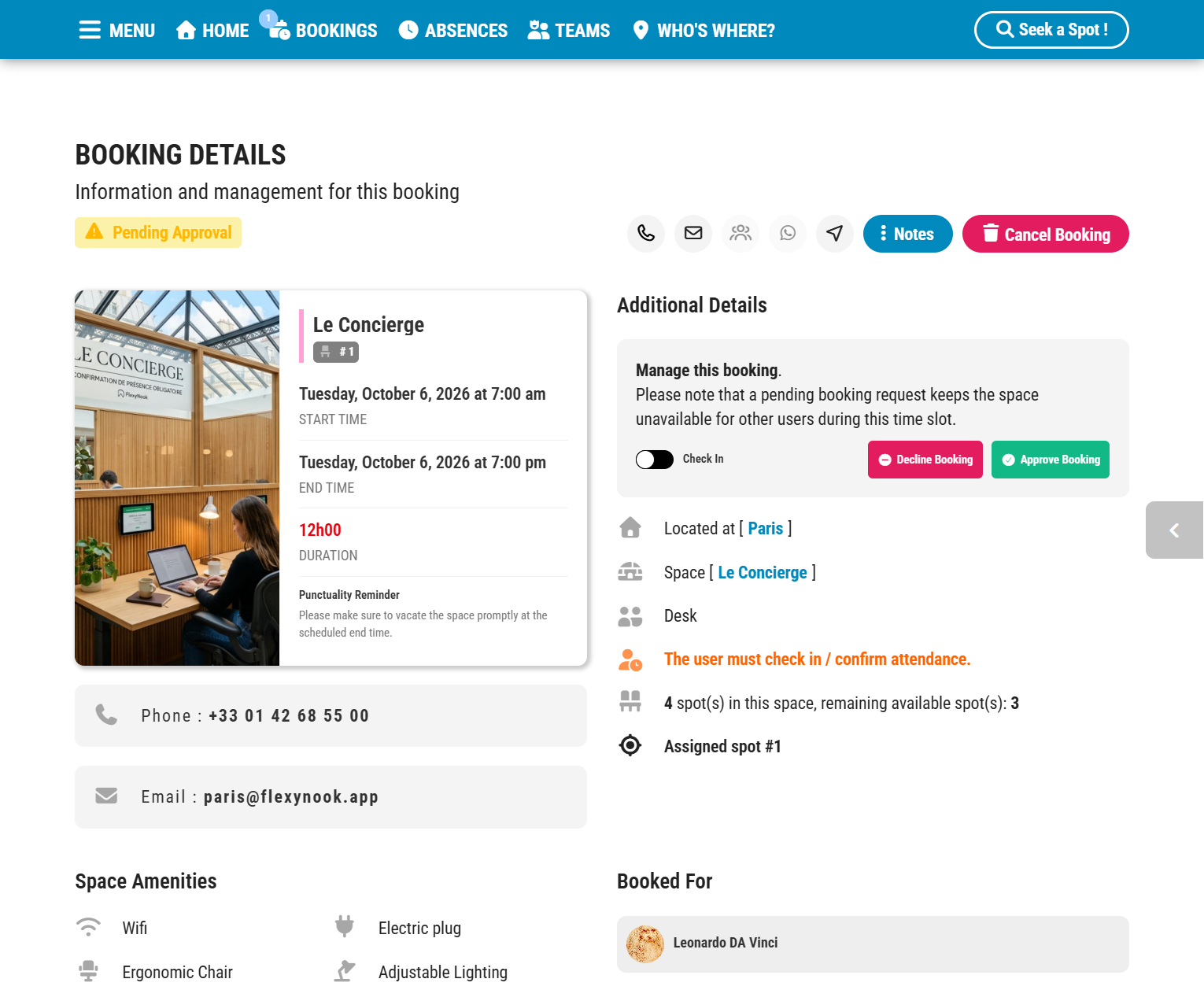
Manager approval: Some spaces require approval from a site manager. You will be notified once validated. Please note that a “Pending” status is not a confirmed reservation.
Check-in required: Certain spaces require you to confirm your presence upon arrival. You can check in by scanning the on-site QR code or logging into the app. If a check-in is required, a reminder will be displayed on your home screen.
Pick a Specific Seat
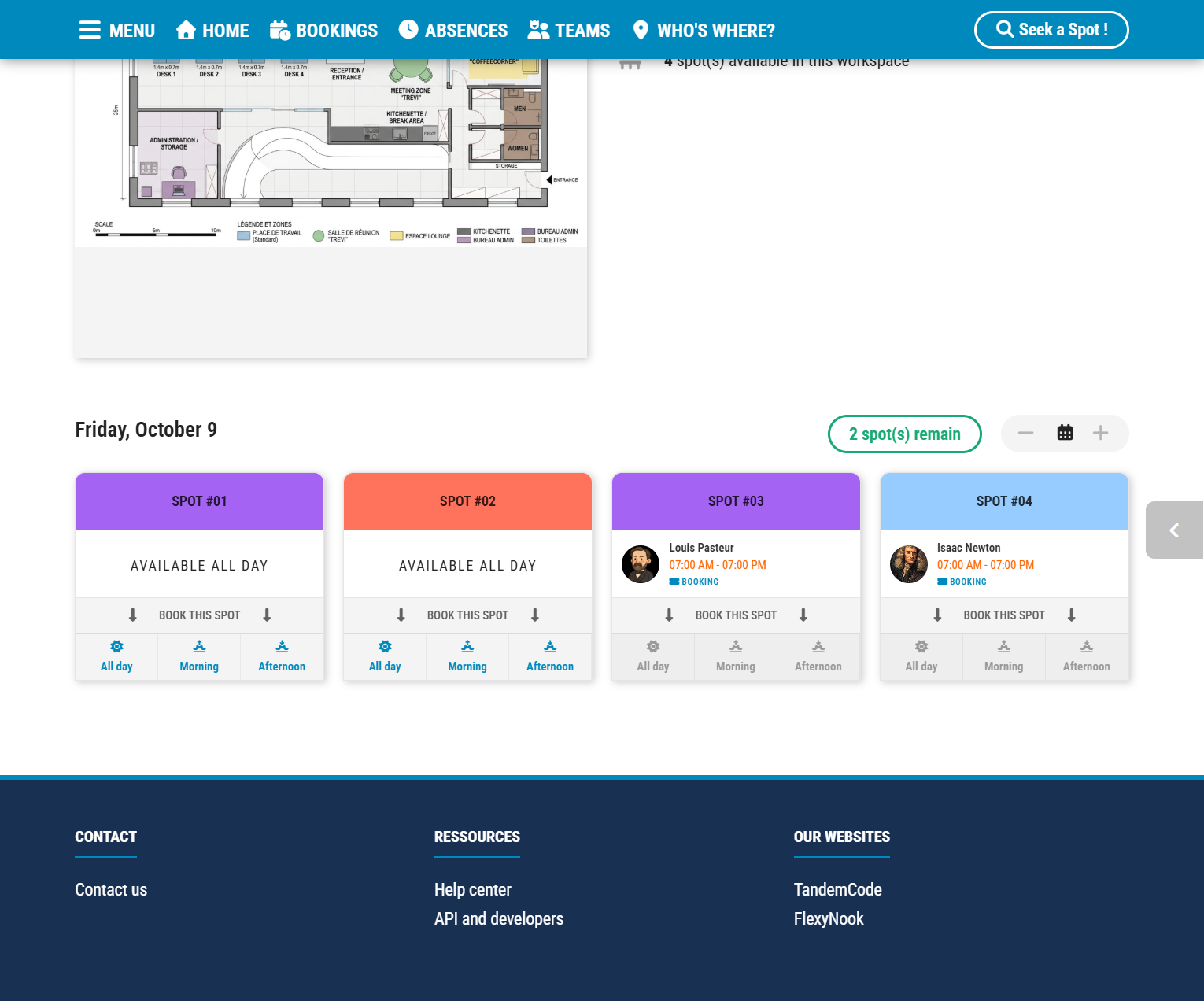
— Manual seat selection: FlexyNook allows you to choose a specific seat if you prefer.
— Select your spot: In the “Available Seats” section, click “Choose my seat” and select your preferred spot.
— Single-date restriction: In this mode, reservations can only be made one date at a time.
Visual Status Indicators
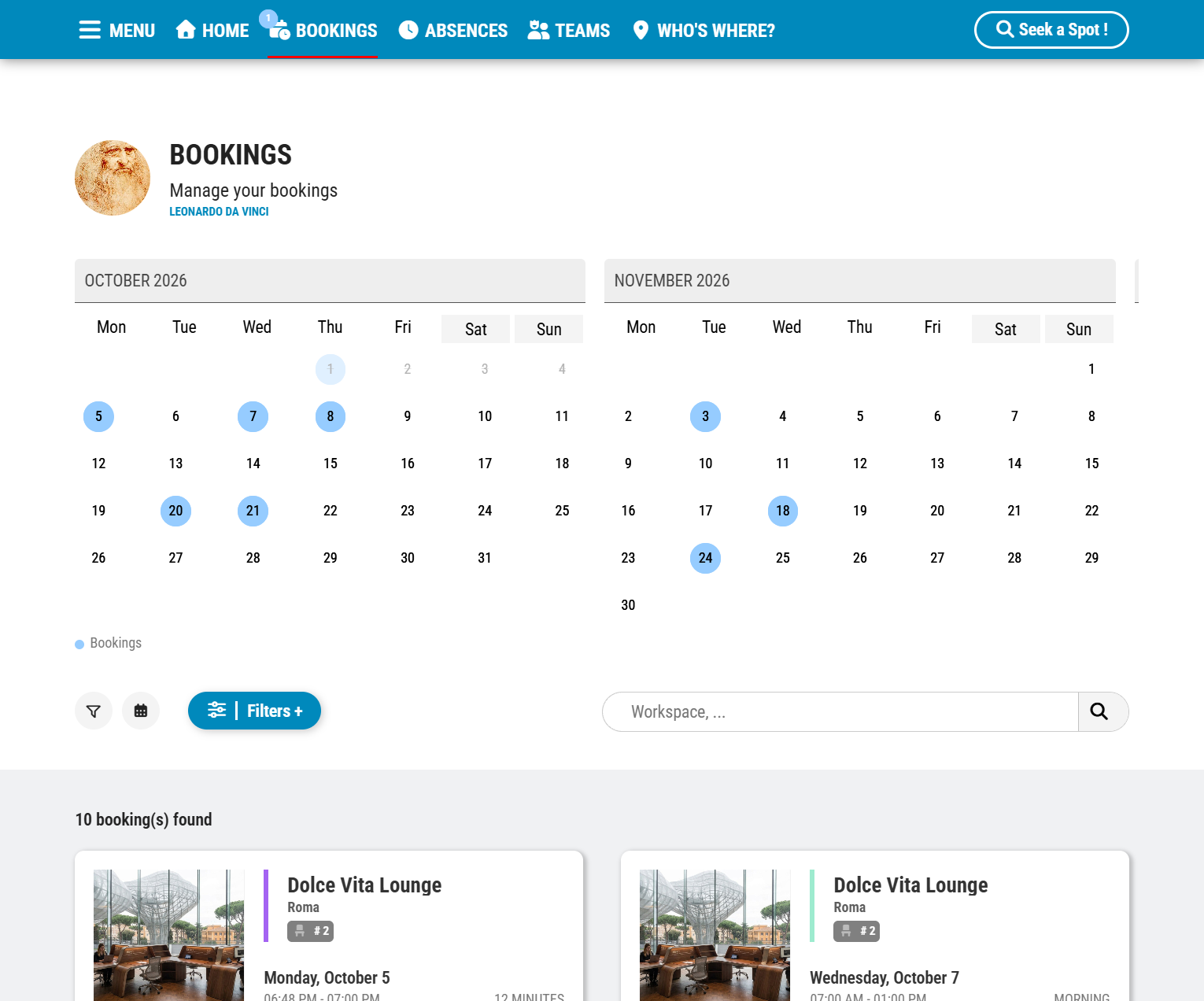
— Active booking indicator: A blue badge on the menu bar indicates that you have an active reservation today.
— Ongoing reservation: If the badge is blinking, your reservation is currently in progress.
— Booking conflict: A red blinking badge indicates that you have a booking conflict that requires your attention to resolve.
Have a question about this guide or FlexyNook?
Need help configuring your spaces or want to clarify a feature? Our team is here to help you get started.