Using QR Codes to Simplify Booking and Check-in
FlexyNook allows administrators to generate QR codes in SVG and PNG formats that link directly to specific workspaces. By simply scanning a QR code with a mobile device, users are automatically directed to the corresponding workspace page in the application, eliminating the need for manual searches.
When to Use QR Codes
Last-Minute Bookings: Users can scan the QR code on-site to immediately book an available workspace for their desired time slot without navigating through menus or search filters.
Streamlined Presence Check-in: In areas where check-in confirmation is required, users simply scan the QR code to instantly display the presence validation prompt and confirm their arrival.
Note: QR Codes are generated at the workspace rather than for individual desk seats. Once generated, a QR code remains permanent and valid even if you rename the workspace or update its settings.
How to Retrieve Workspace QR Codes
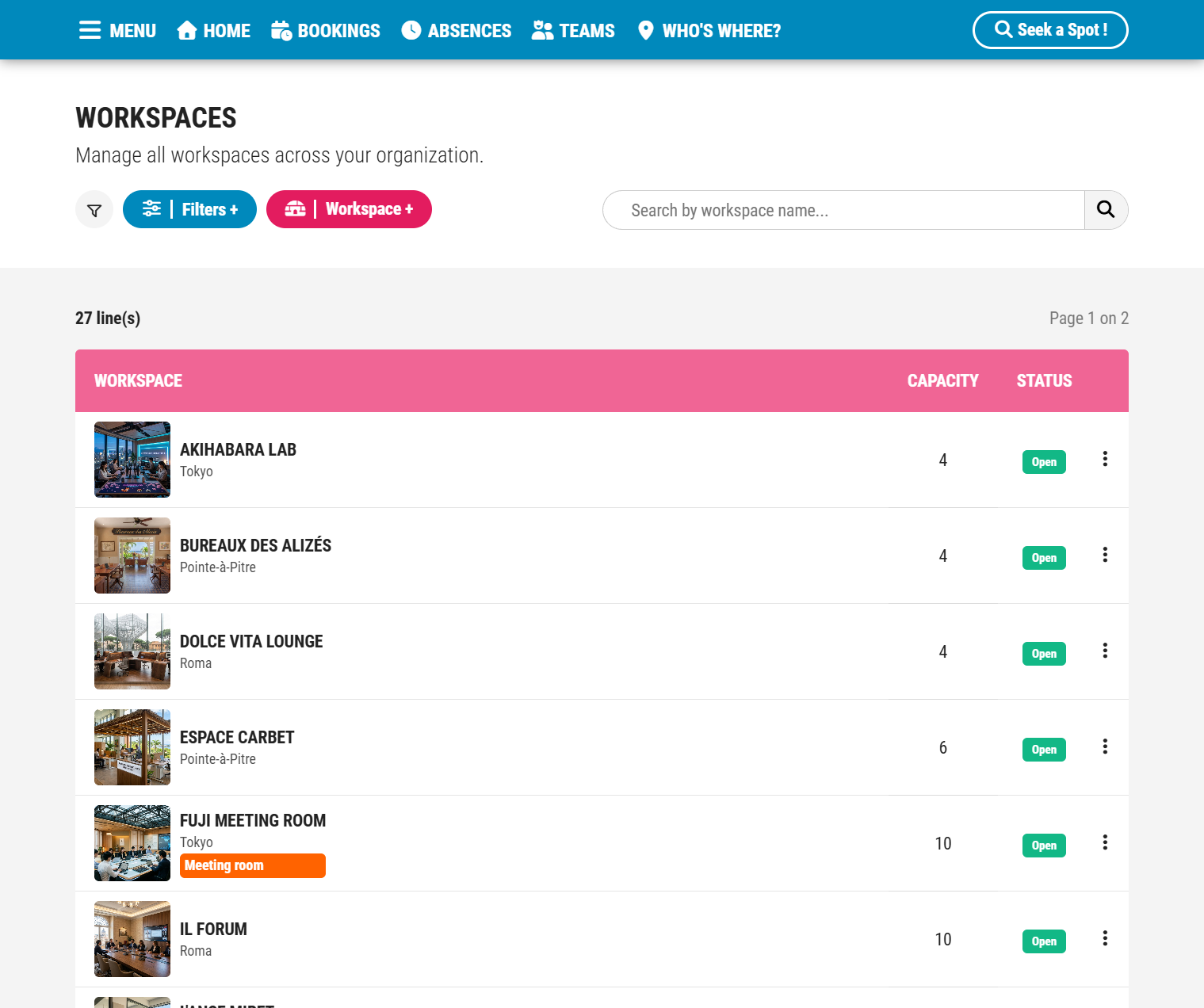
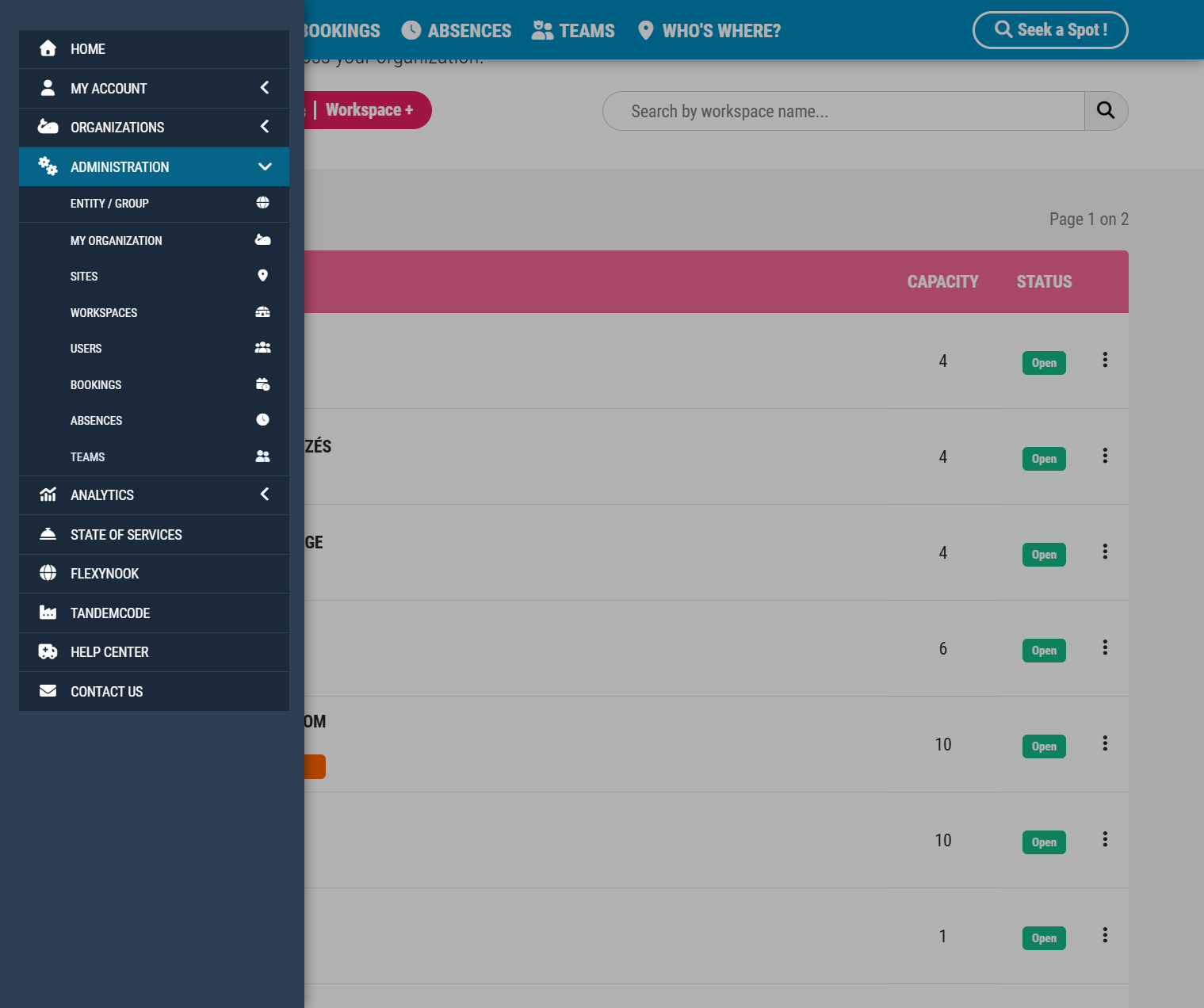
1 – Go to the Admininistration menu and select Workspaces
2 – Click on the specific workspace you wish to configure.
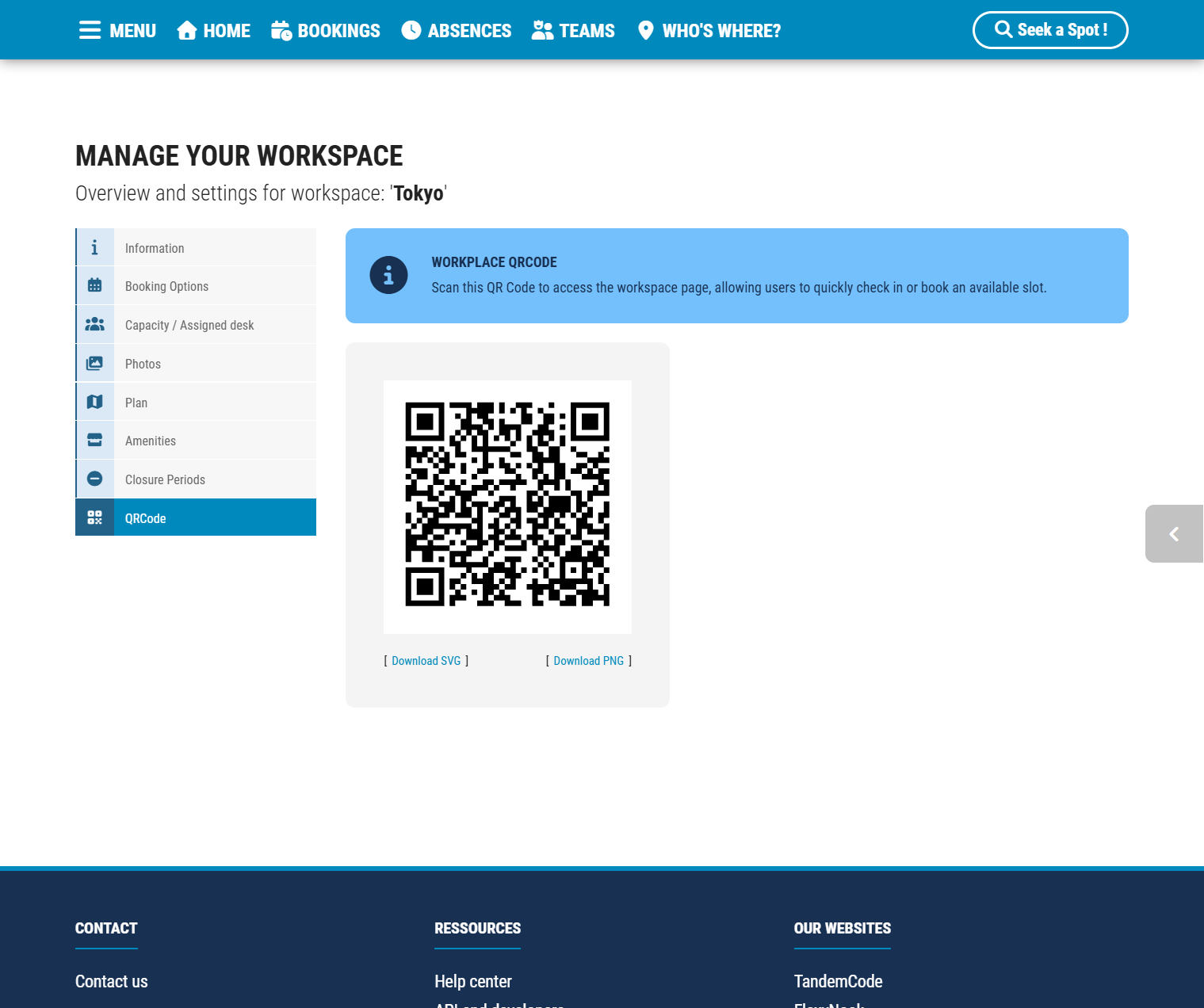
3 – Select the QR Code tab.
4 – Download the QR code in SVG (vector format, ideal for printing) or PNG format.
Have a question about this guide or FlexyNook?
Need help configuring your spaces or want to clarify a feature? Our team is here to help you get started.